1. Preparation
Before using the Qobuz music service, you need a valid Qobuz account.
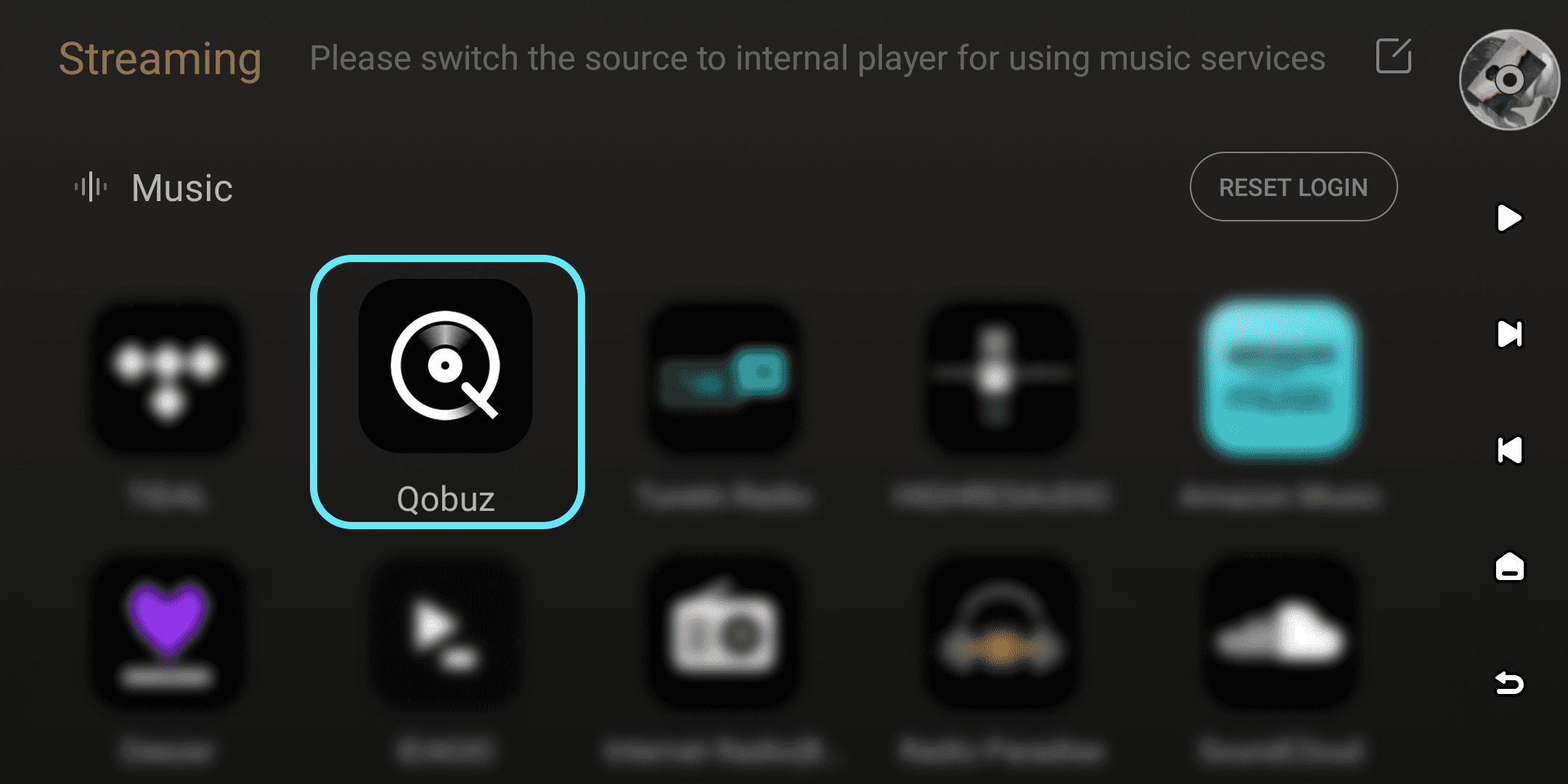
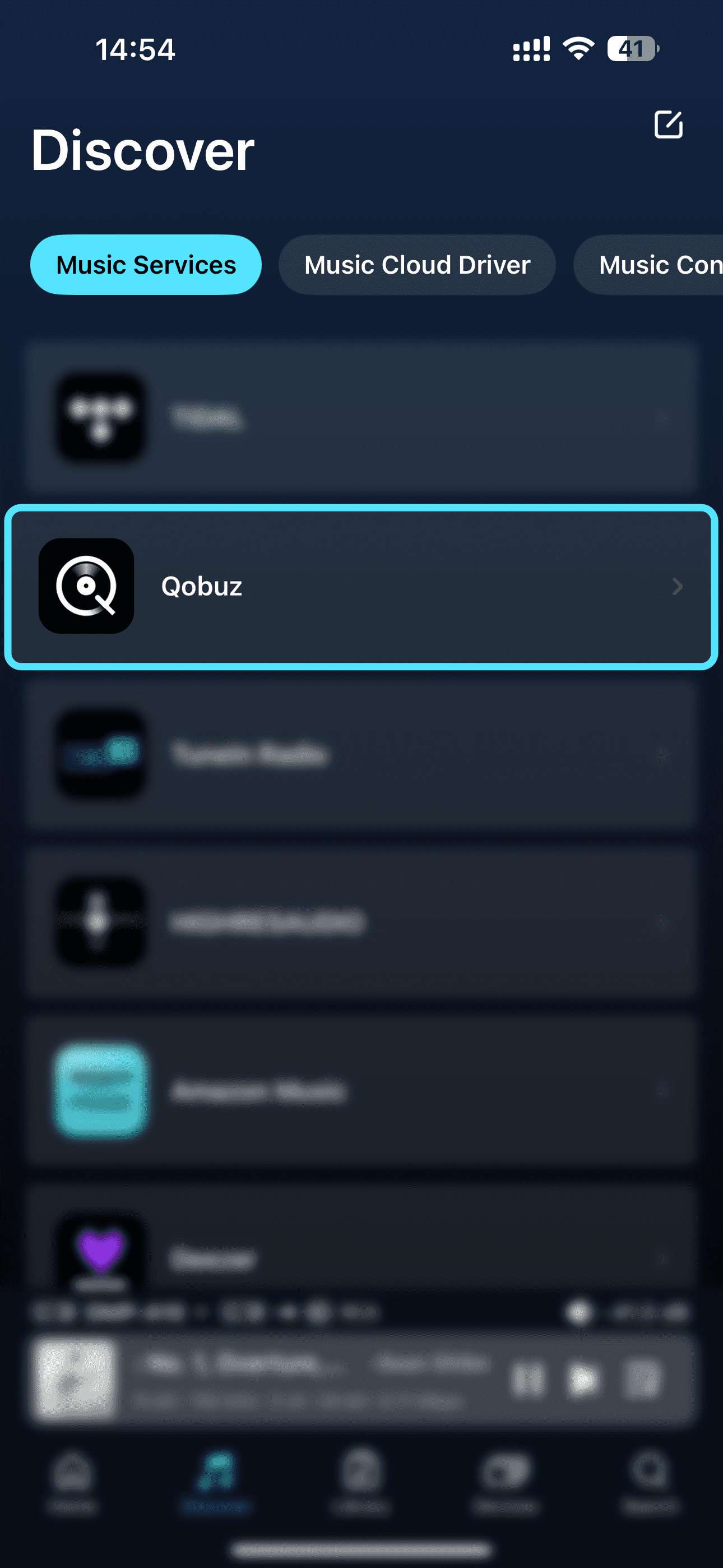
For first-time login, open Qobuz on your device under "Streaming" - "Music", or open it in the Eversolo Control app under "Discover" - "Music Services". Follow the on-screen prompts to complete login.
2. Log In
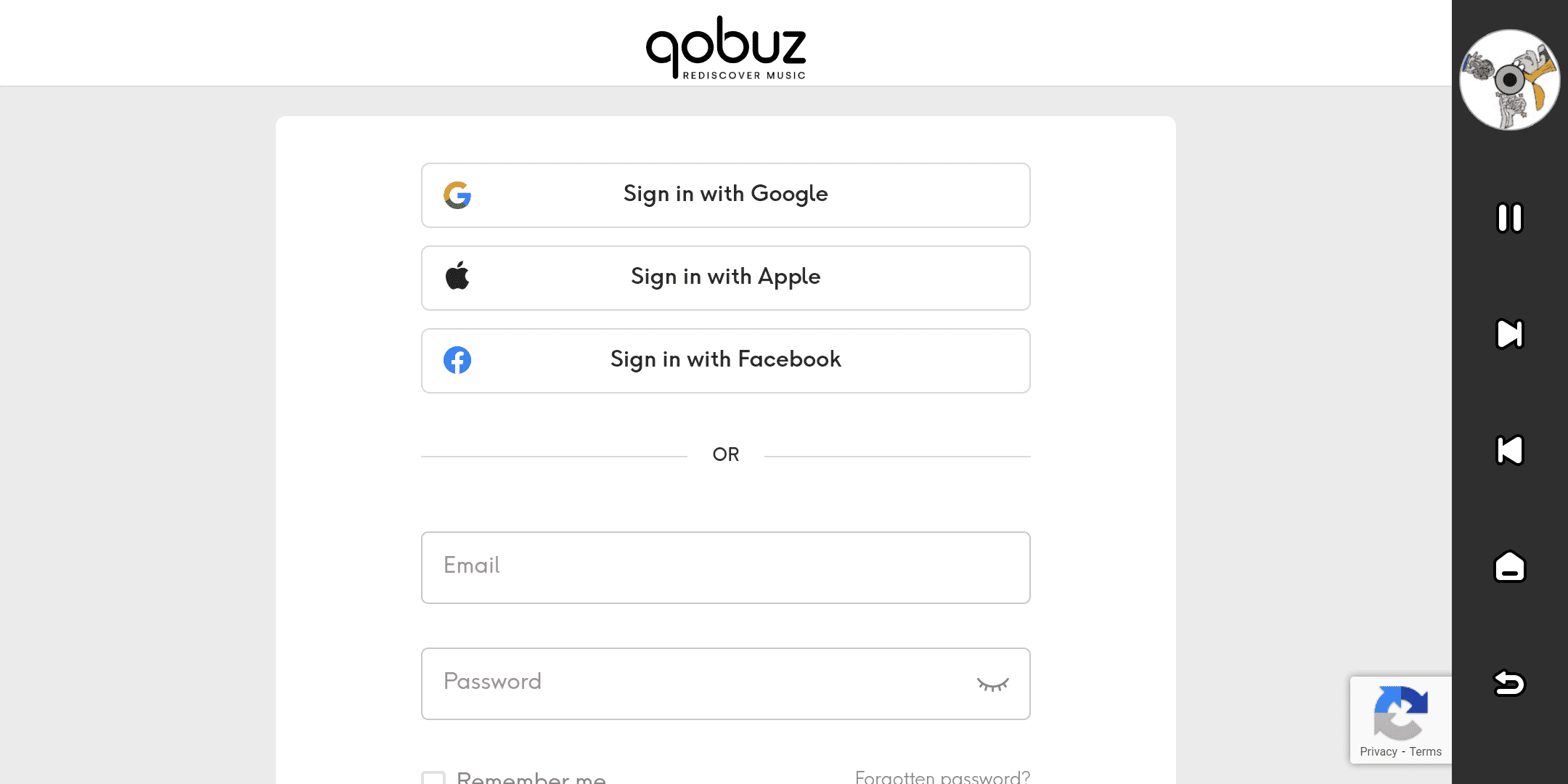
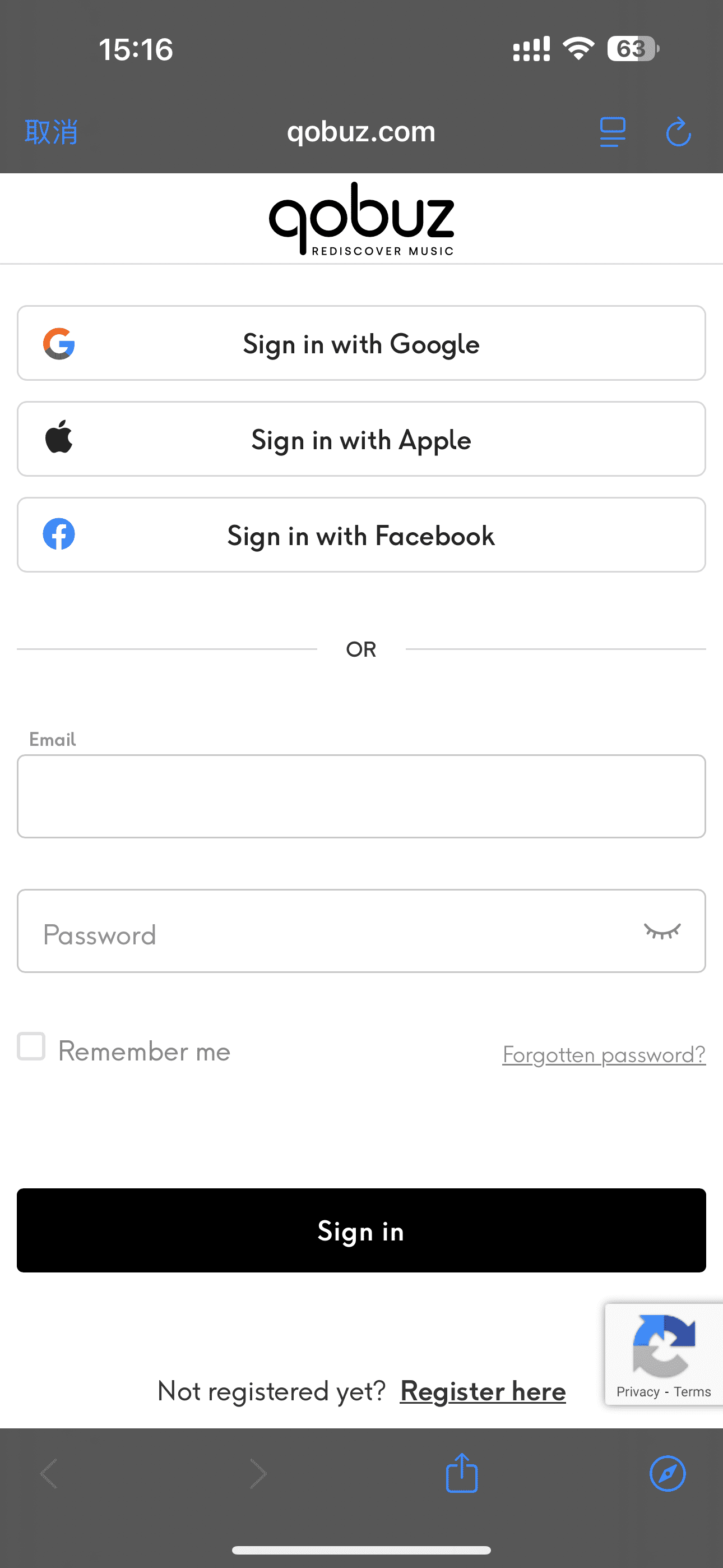
Enter your Qobuz account and password on your device or in the Eversolo Control app to log in.
If you haven't created a Qobuz account yet, click "Sign in" and follow the prompts to register.
3. Browsing
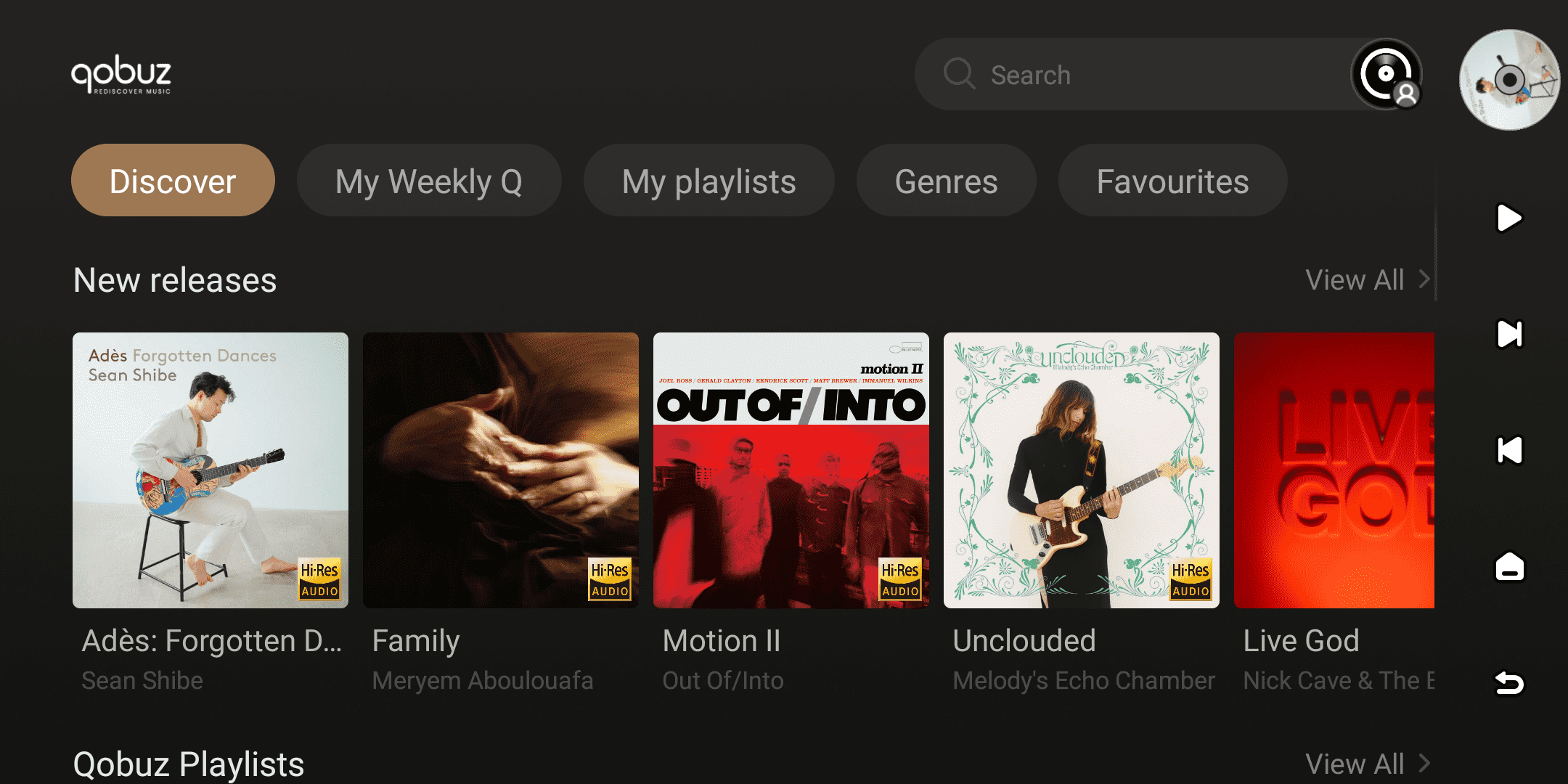
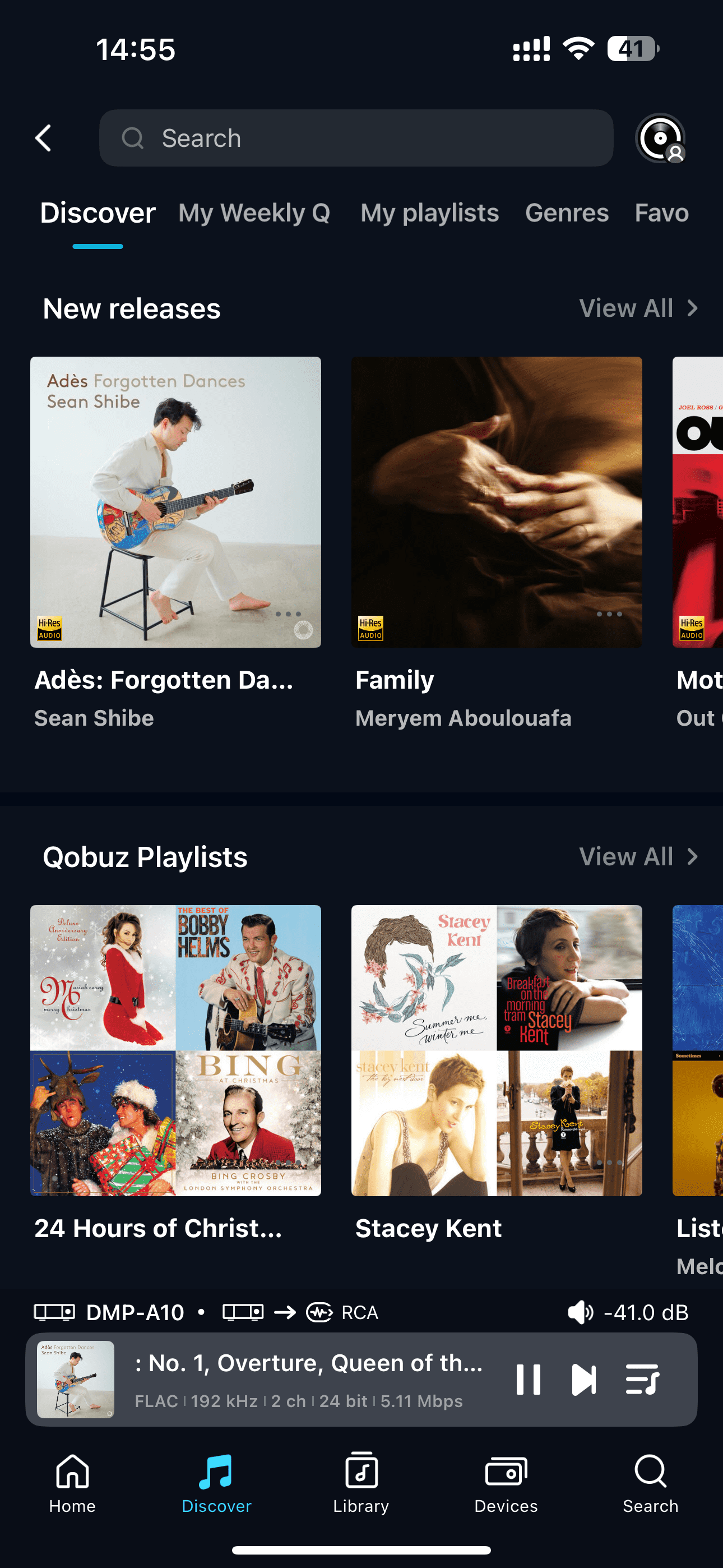
After successfully logging in, you can browse Qobuz music on your device or in the Eversolo Control app. At the top of the interface, you will see sections for Discover, My Weekly Q, My playlists, Genres, and Favorites.
You can browse these categories layer by layer to access various recommended content from Qobuz's curated music selections. You can also view your favorite custom playlists, recent releases, and artists in the Favorites section.
4. Search
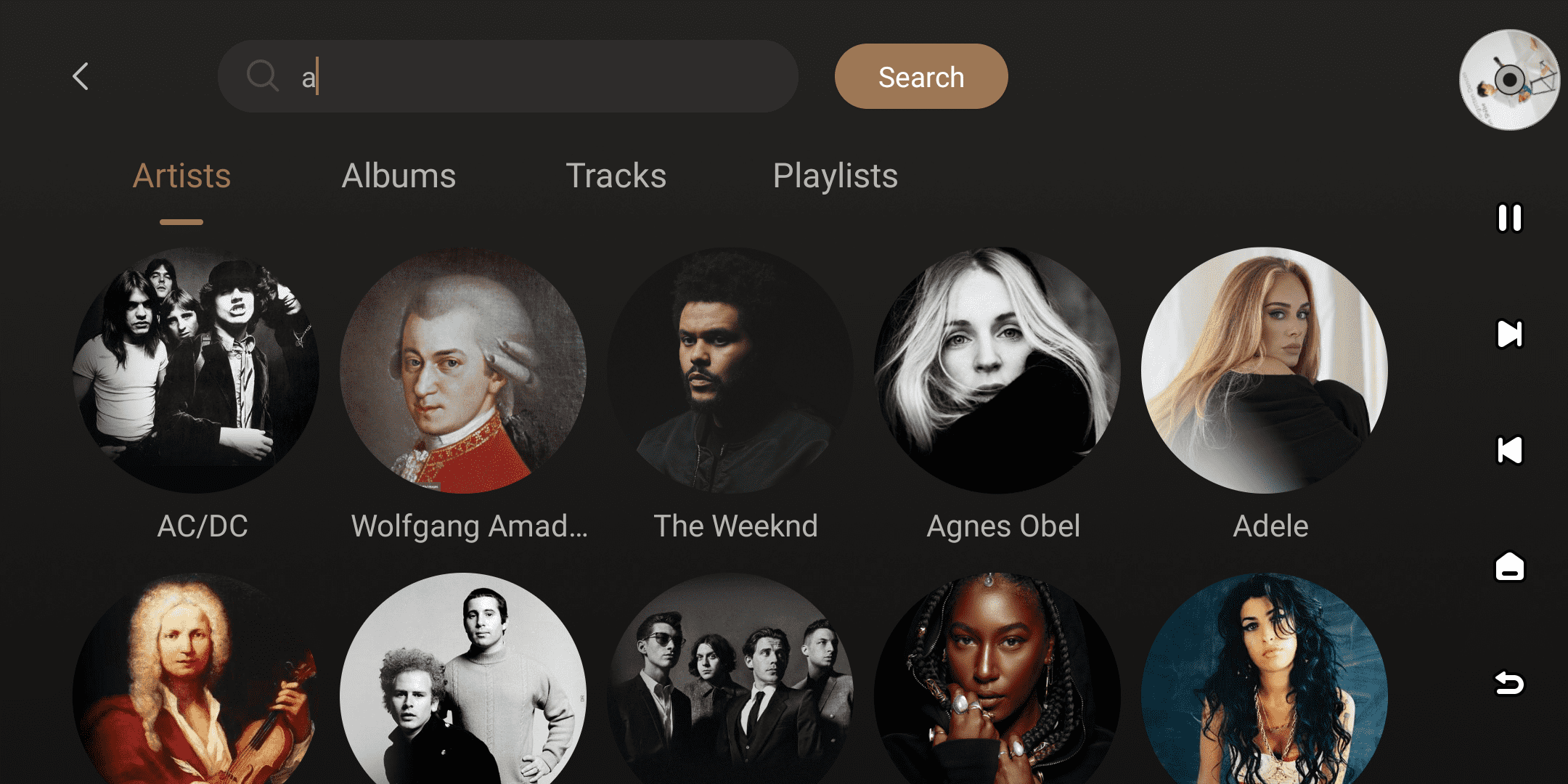
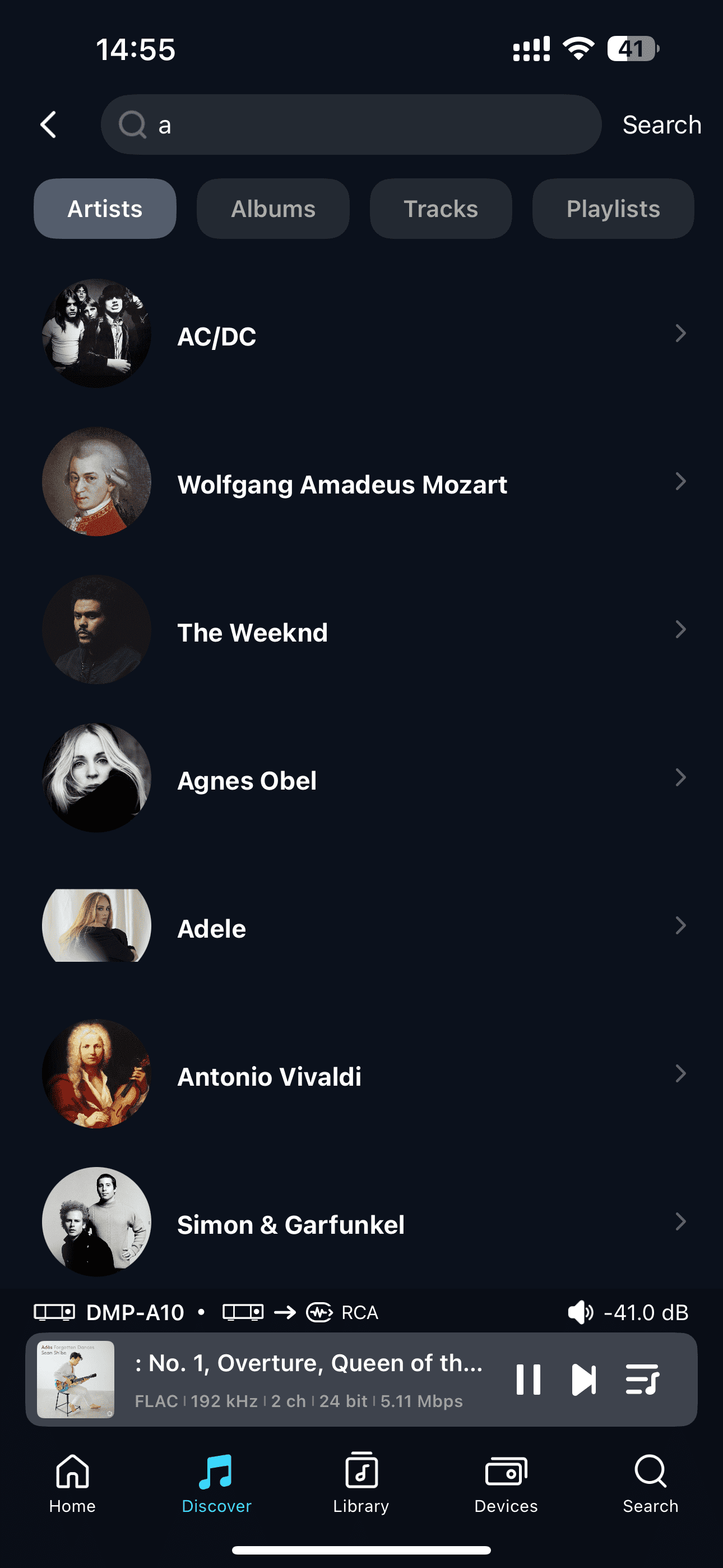
Click the search box at the top to search the entire Qobuz music library, finding Artists,Albums, Tracks, Playlists, and more to quickly locate your favorite music resources.
[Dual-end demonstration of the device and Eversolo Control]
5. More
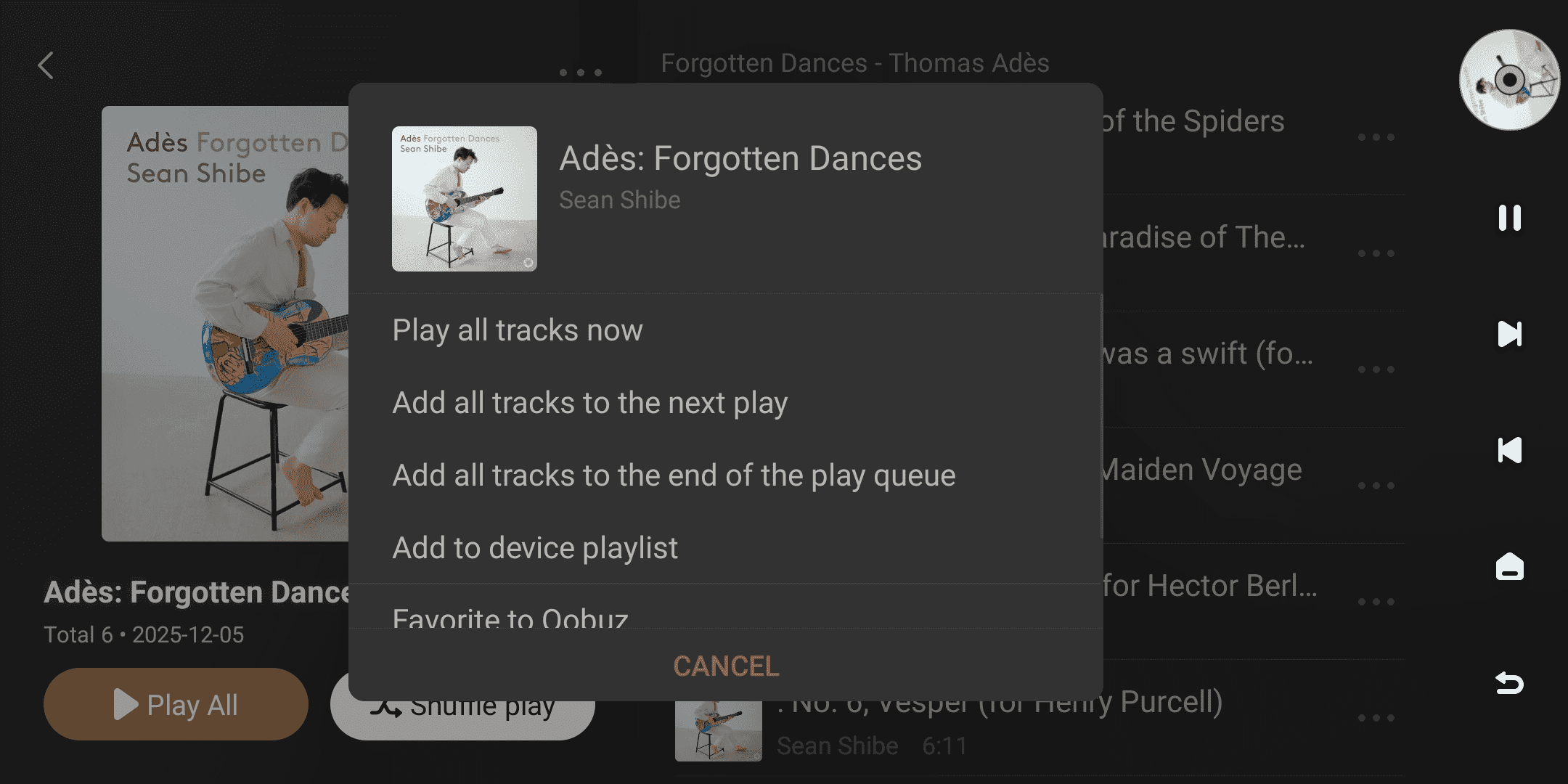
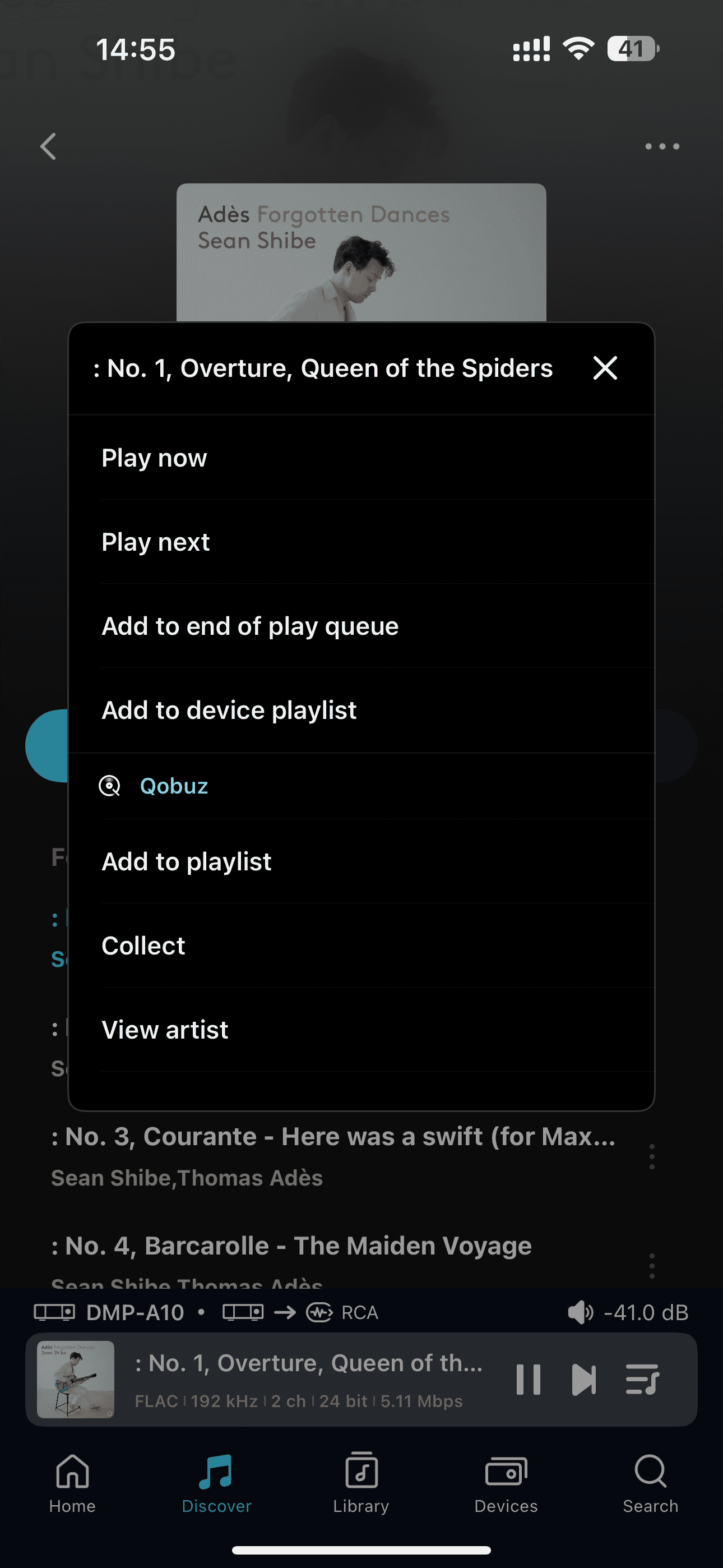
In the browsing interface, you can access the more functions menu by clicking the " " icon to the right of a track or the "
 " icon in the upper right corner of an album/playlist.
This menu supports the following functions:
| More menus for singles | More menus for albums/playlists |
|---|---|
| Play now / Play next | Play all tracks now |
| Add to the end of play queue | Add all tracks to the next play |
| Add to device playlist | Add all tracks to the end of the play queue |
| Favorite to Qobuz | Add to device playlist |
| Add to Qobuz playlist | Favorite to Qobuz |
| View artist | Add all tracks to Qobuz playlist |
| View album | / |
Tips:
- Saved content can be viewed and managed at any time in the "My Collection" section.
- Content added to your device's playlist can be viewed and managed centrally in My Favorites - Device Playlists.
[Dual-end demonstration of the device and Eversolo Control]
6. Streaming Quality
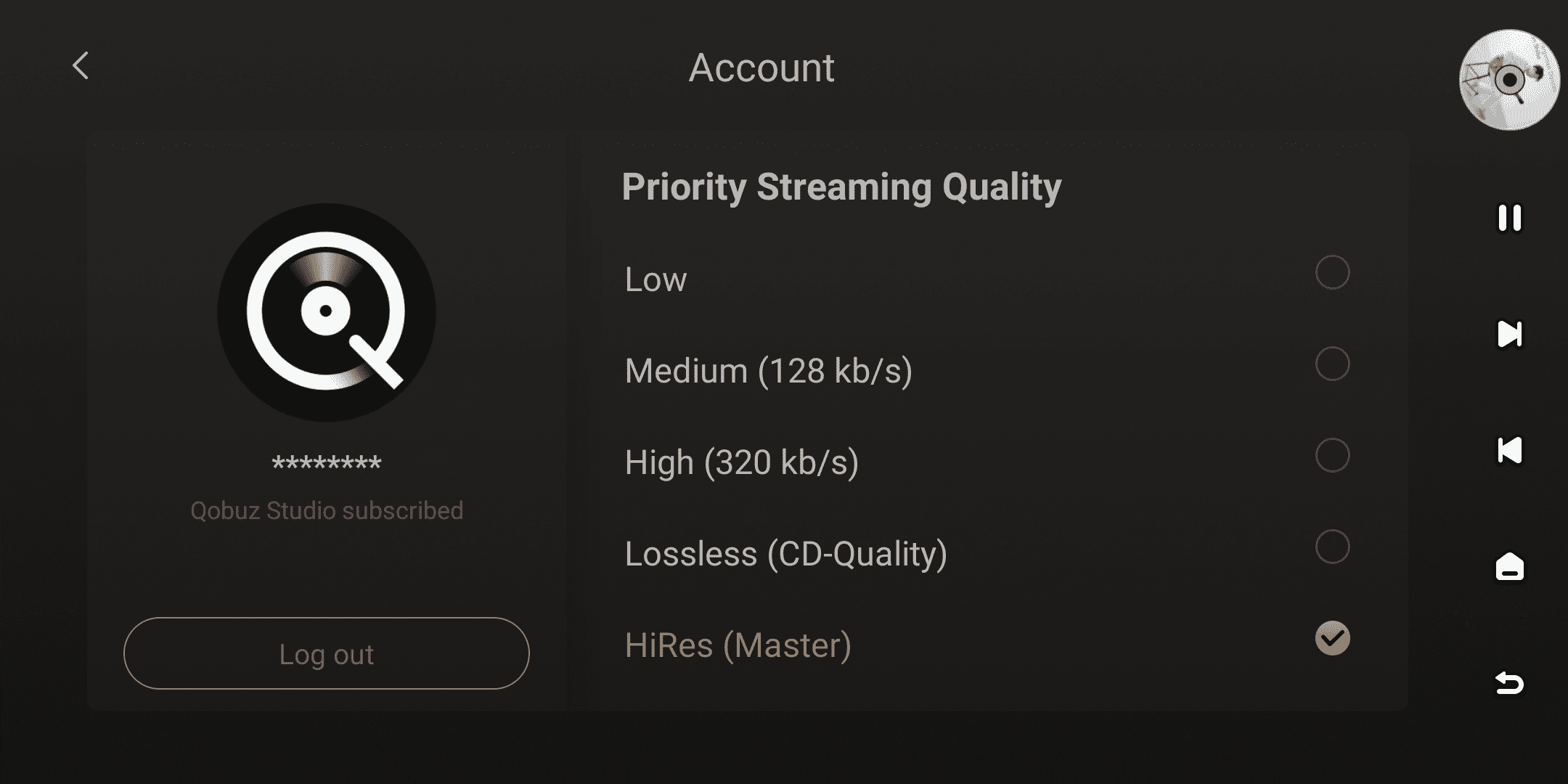
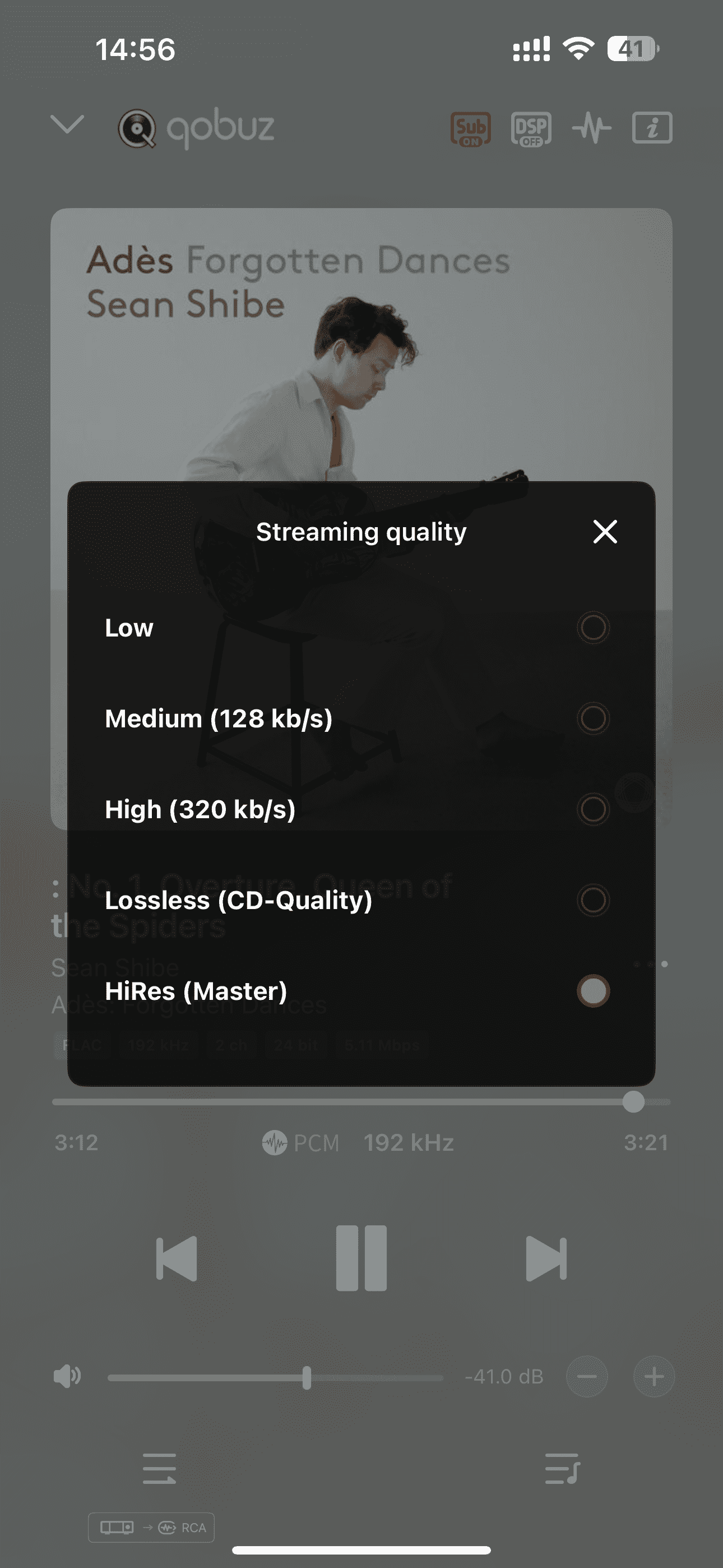
When using the TIDAL music service, you can select the Streaming Quality mode by clicking the " " icon in the upper right corner of the homepage or by clicking the "
 " icon on the playback details screen.
Supported options include:
- Low
- Medium(128 kb/s)
- Hight(320 kb/s)
- Lossless(CD-Quality)
- HiRes(MAX/Master)
[Dual-end demonstration of the device and Eversolo Control]