1. Preparation
Open Podcast on your device under "Streaming" - "Music", or open it in the Eversolo Control app under "Discover" - "Music Services". No account is required to use this service.
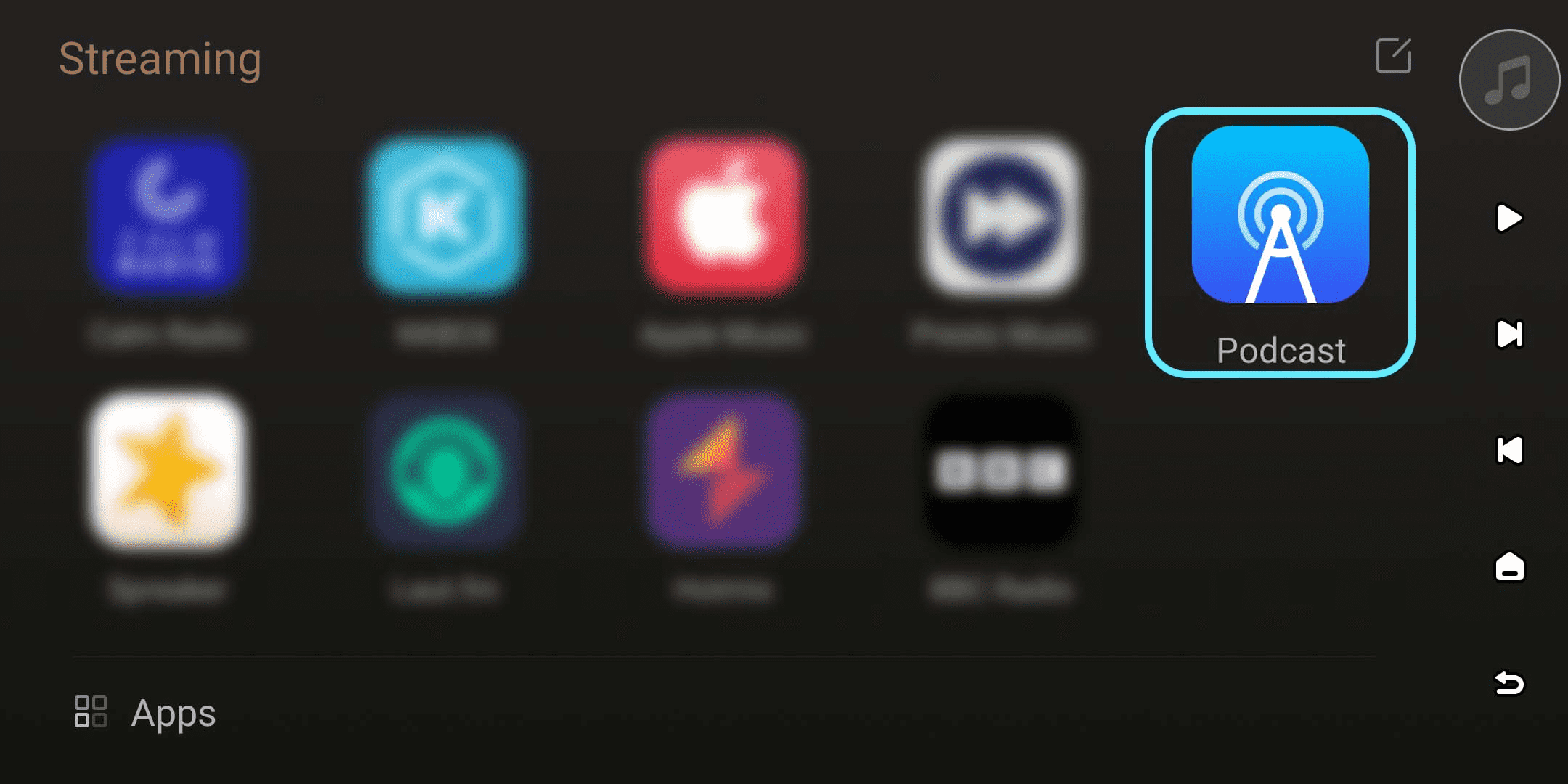
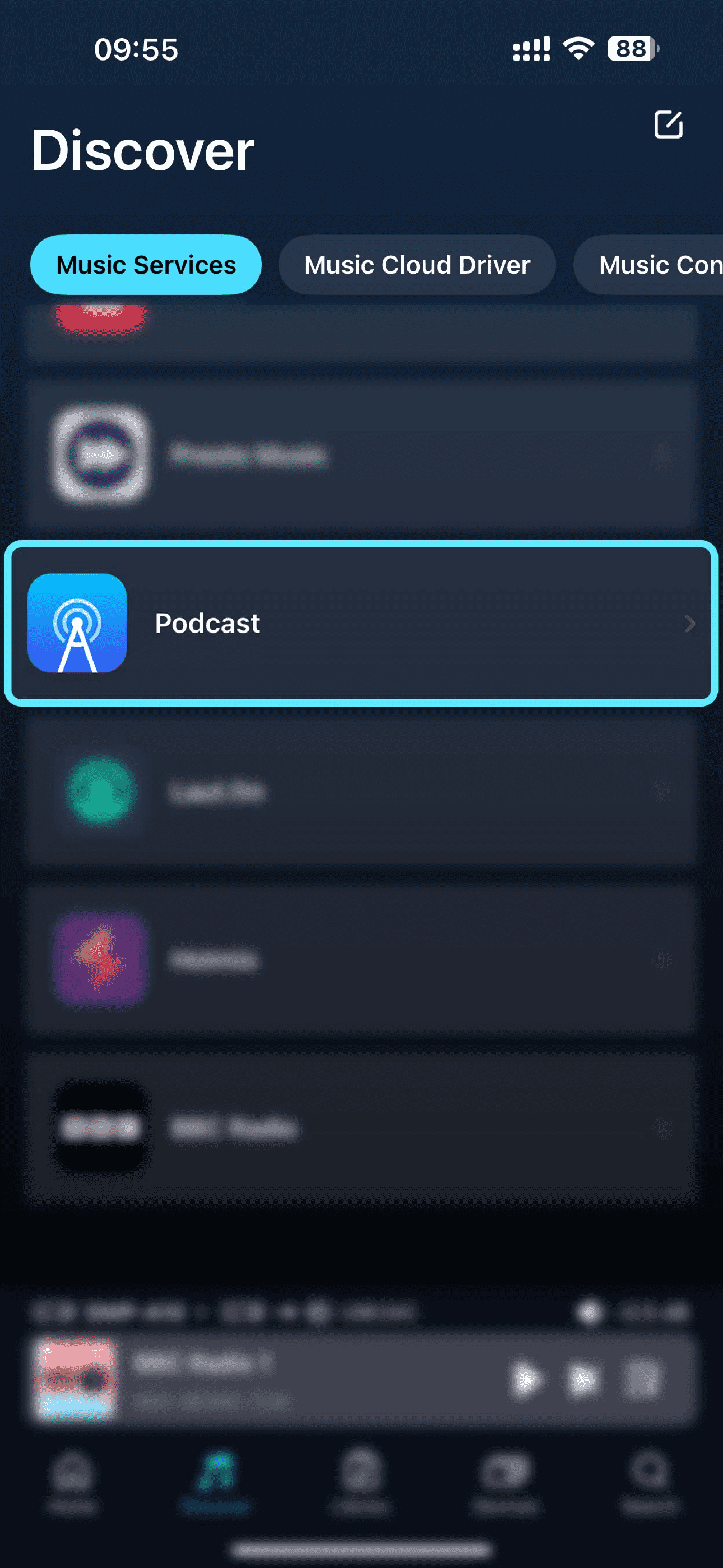
[Dual-end demonstration of the device and Eversolo Control]
2. Browsing
Browse Podcast content on your device or the Eversolo Control app. The homepage offers various genre categories such as Recommend, Subscribed, Play history and Recently updated.
The ''Subscribed'' menu supports manually adding online podcasts, which can be imported via an RSS address or XML/OPML file for personalized management.
You can browse various podcast content in the ''Recommend'' category. All playback records are automatically saved to ''Play history'' for easy viewing and reference at any time.
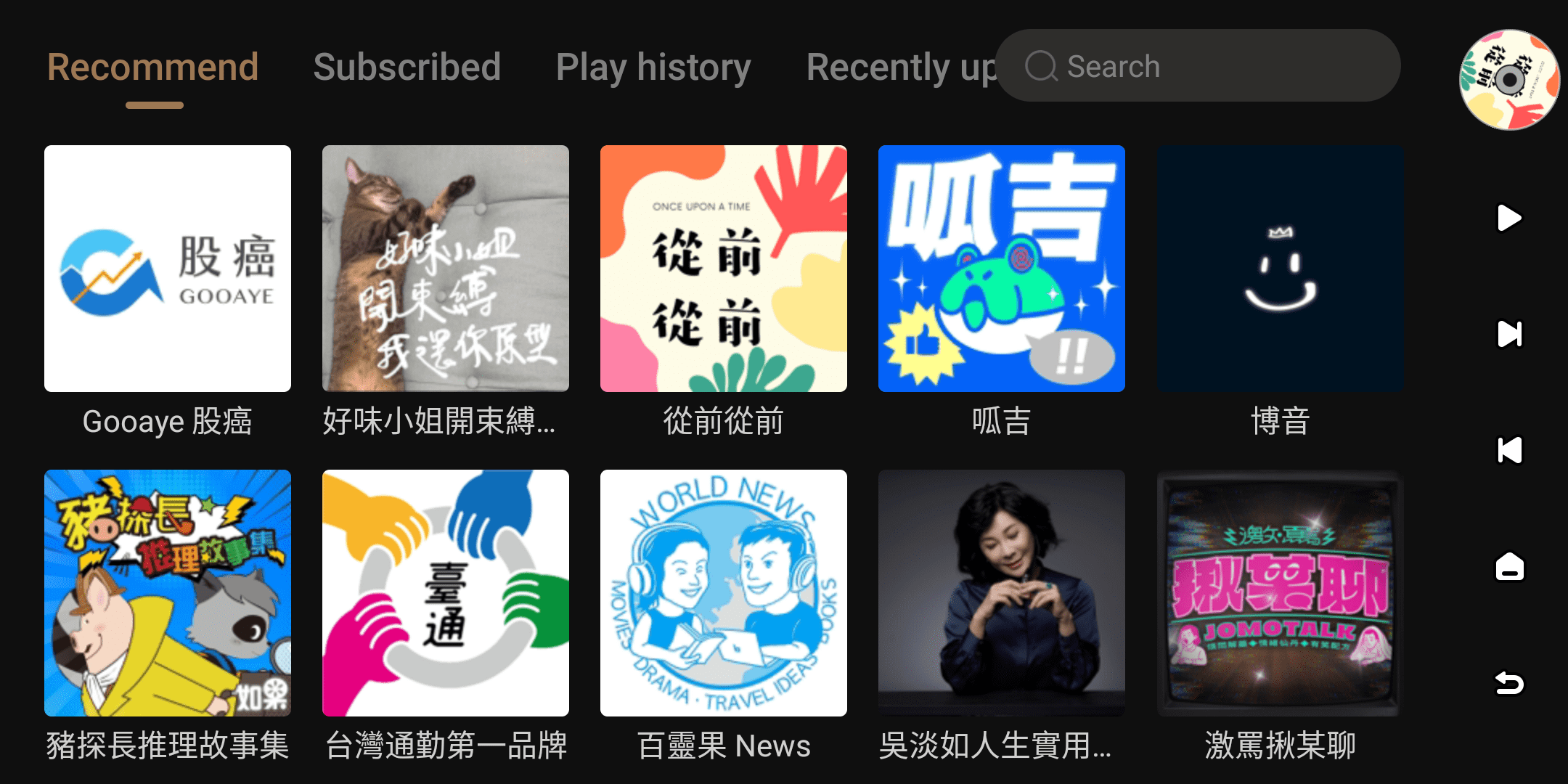
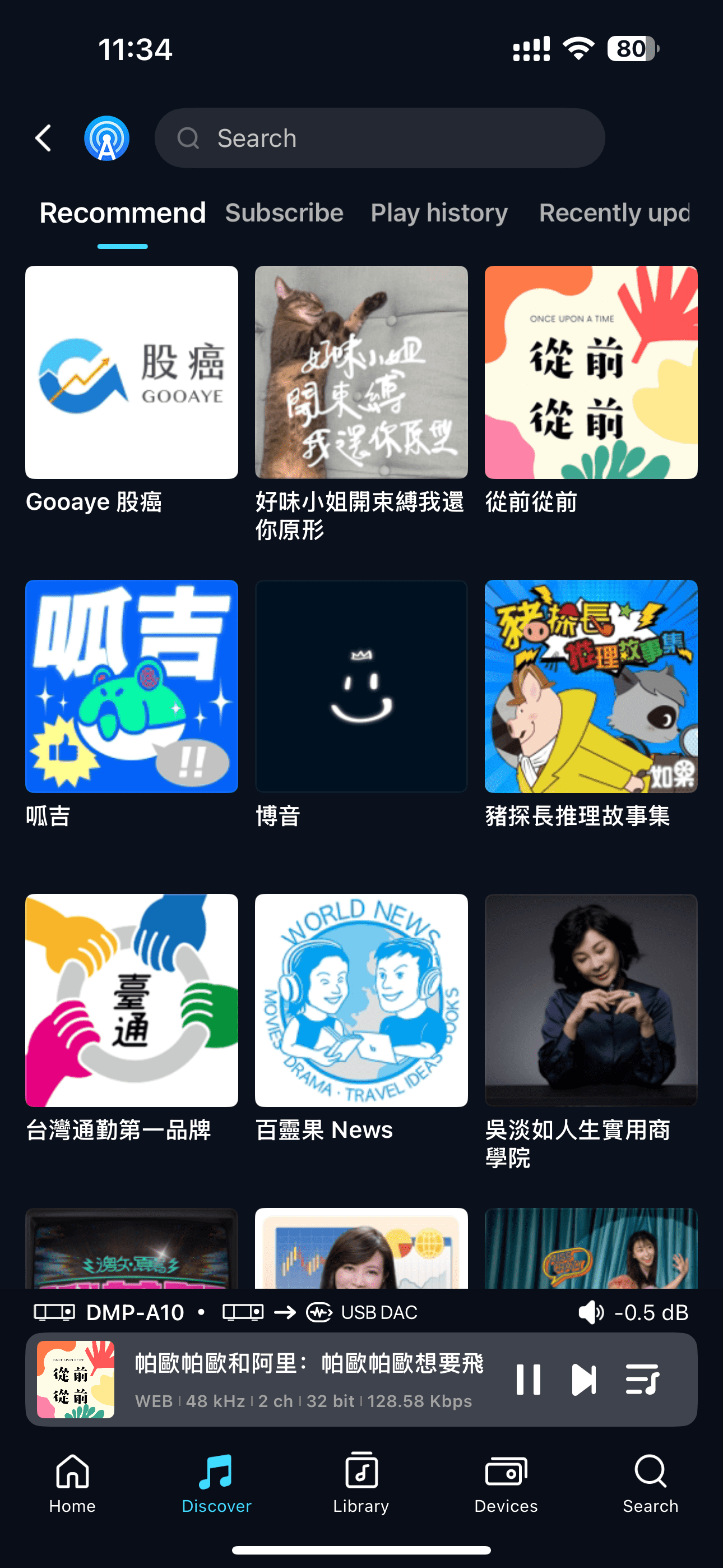
[Dual-end demonstration of the device and Eversolo Control]
3. Search
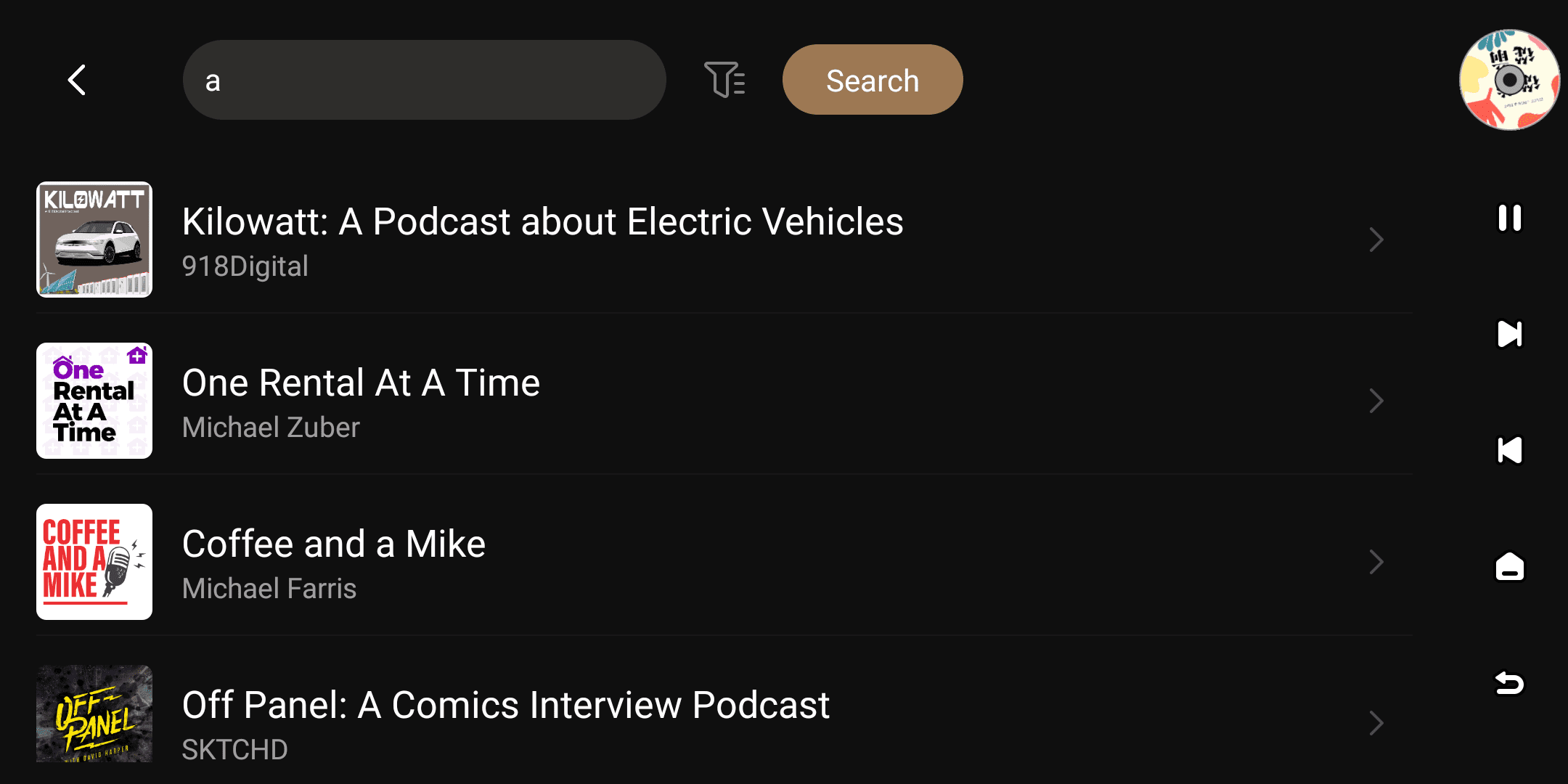
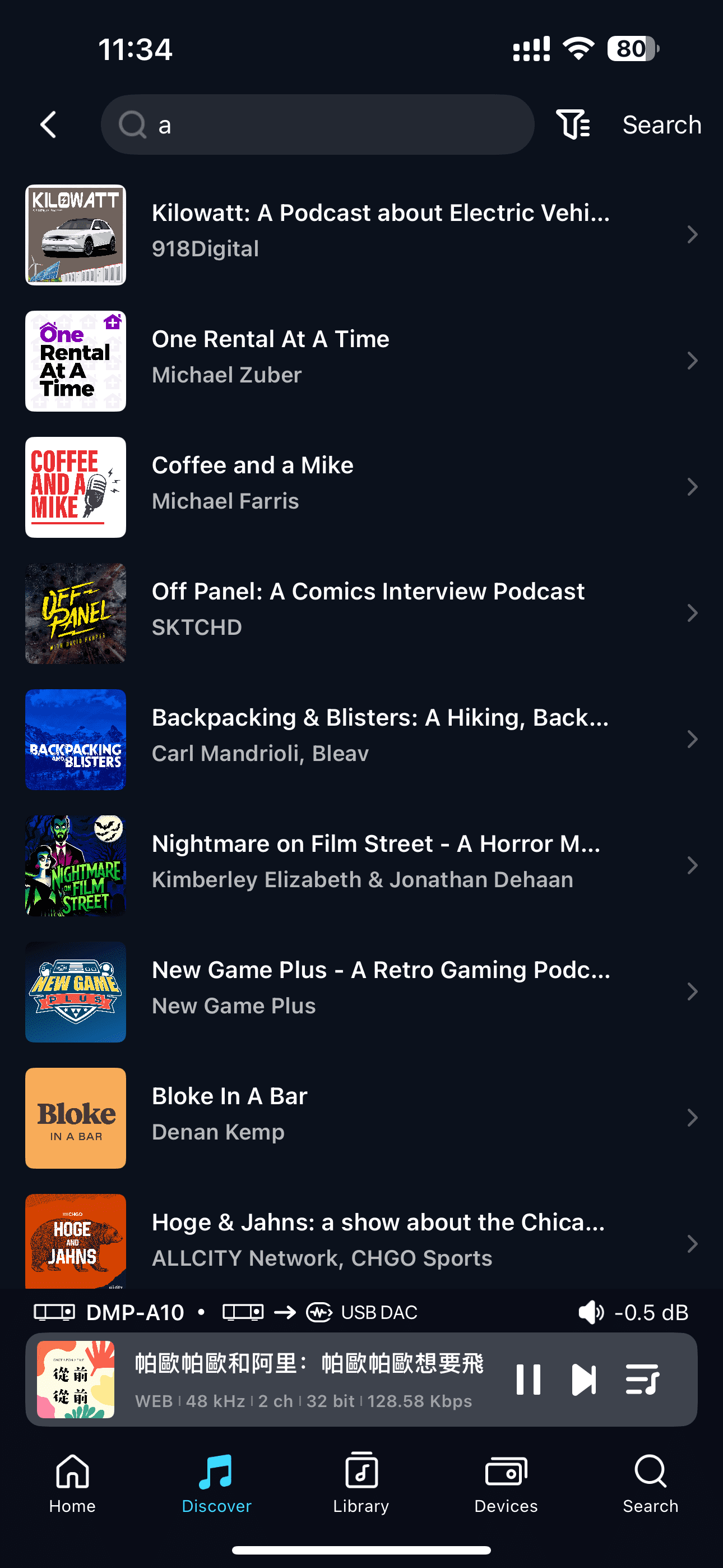
Click the search box at the top of the interface to search the entire Podcast library and quickly find your target station.
Click the ''Filter'' icon to the left of the search button to switch between different search engines.
[Dual-end demonstration of the device and Eversolo Control]
4. More
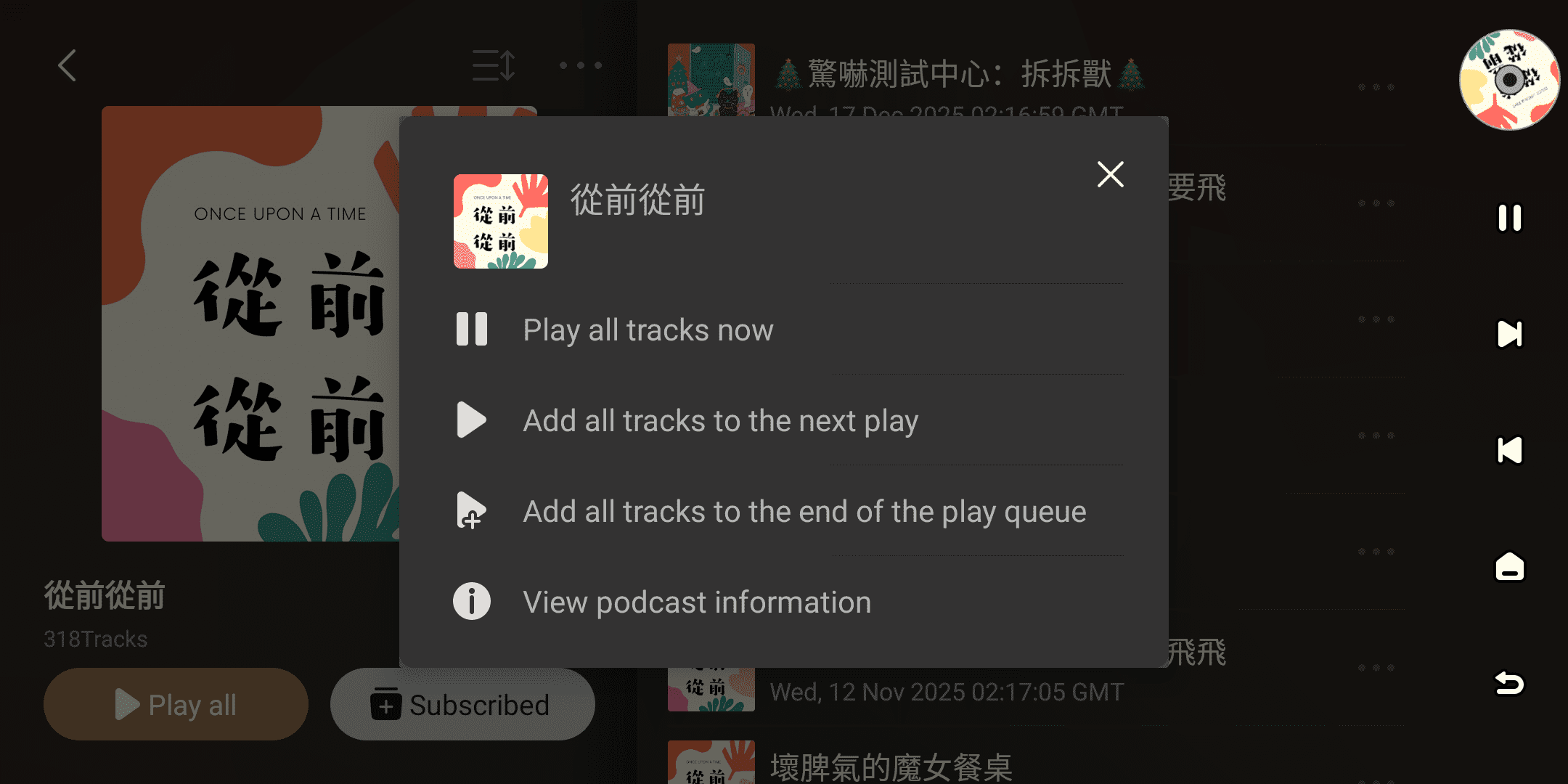
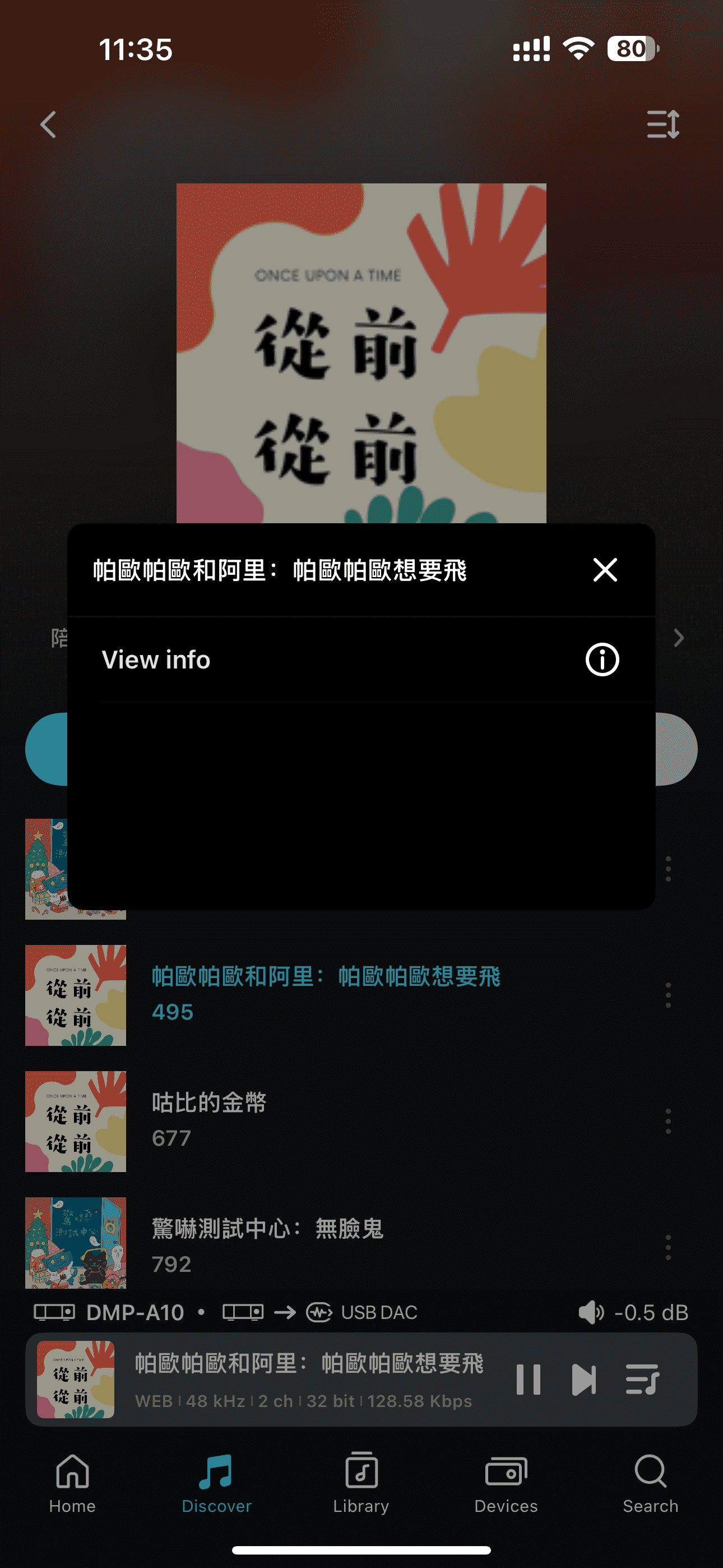
When browsing a podcast list or playlist, click the ''More'' icon on the right of episode or collection to open the action menu.
This menu supports the following functions:
| More menu for episodes | More menu for Podcast collection |
|---|---|
| Play now (device end only) | Play all tracks now |
| Play next (device end only) | Add all tracks to the next play |
| Add to the end of play queue (device end only) | Add all tracks to the end of play queue |
| View podcast information | View podcast information |
[Dual-end demonstration of the device and Eversolo Control]
5. Streaming Quality
When using the Podcast service, the device will output directly according to the current audio source specifications.The actual audio quality depends on the original audio quality provided by the Podcast platform.
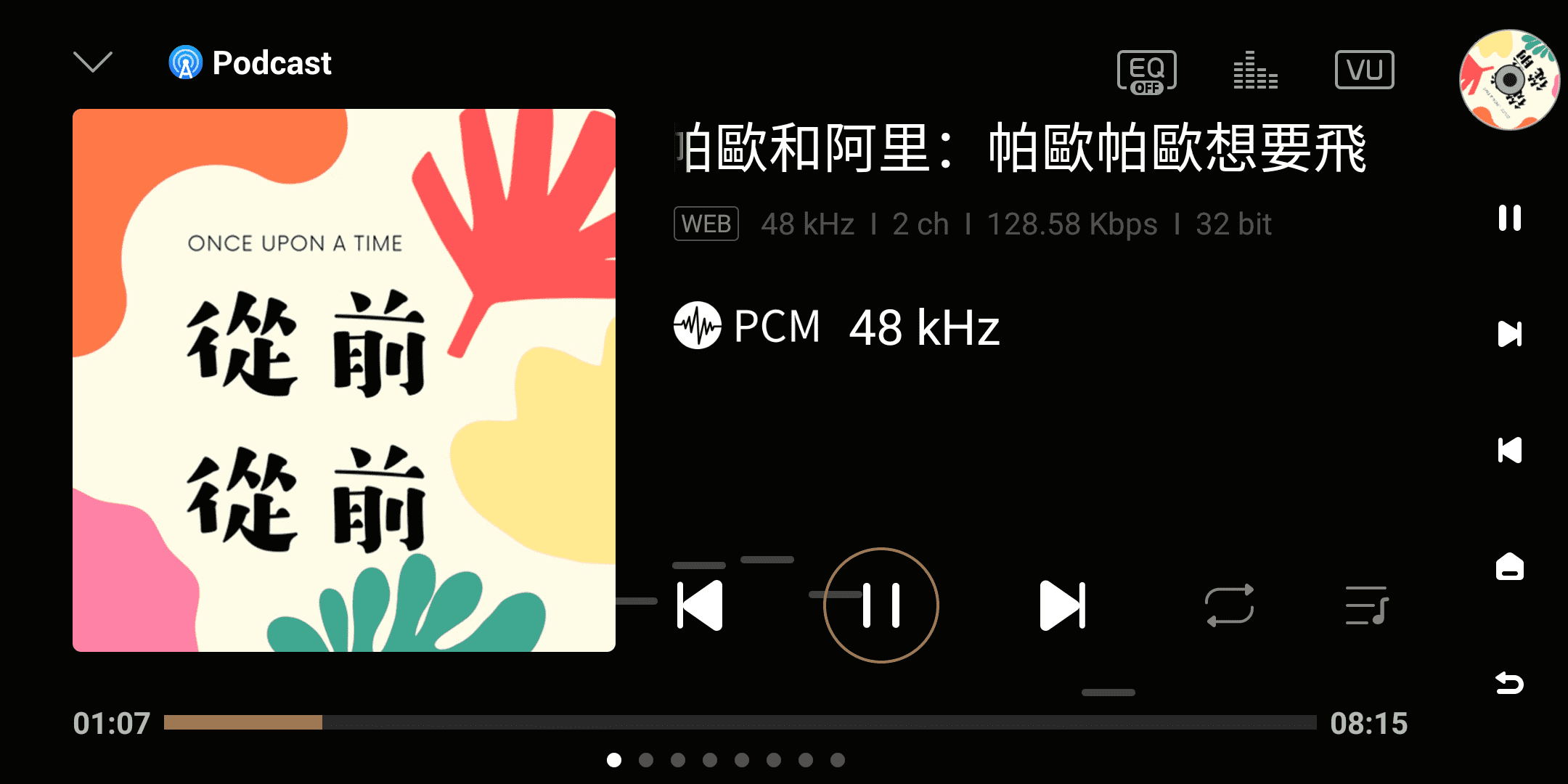
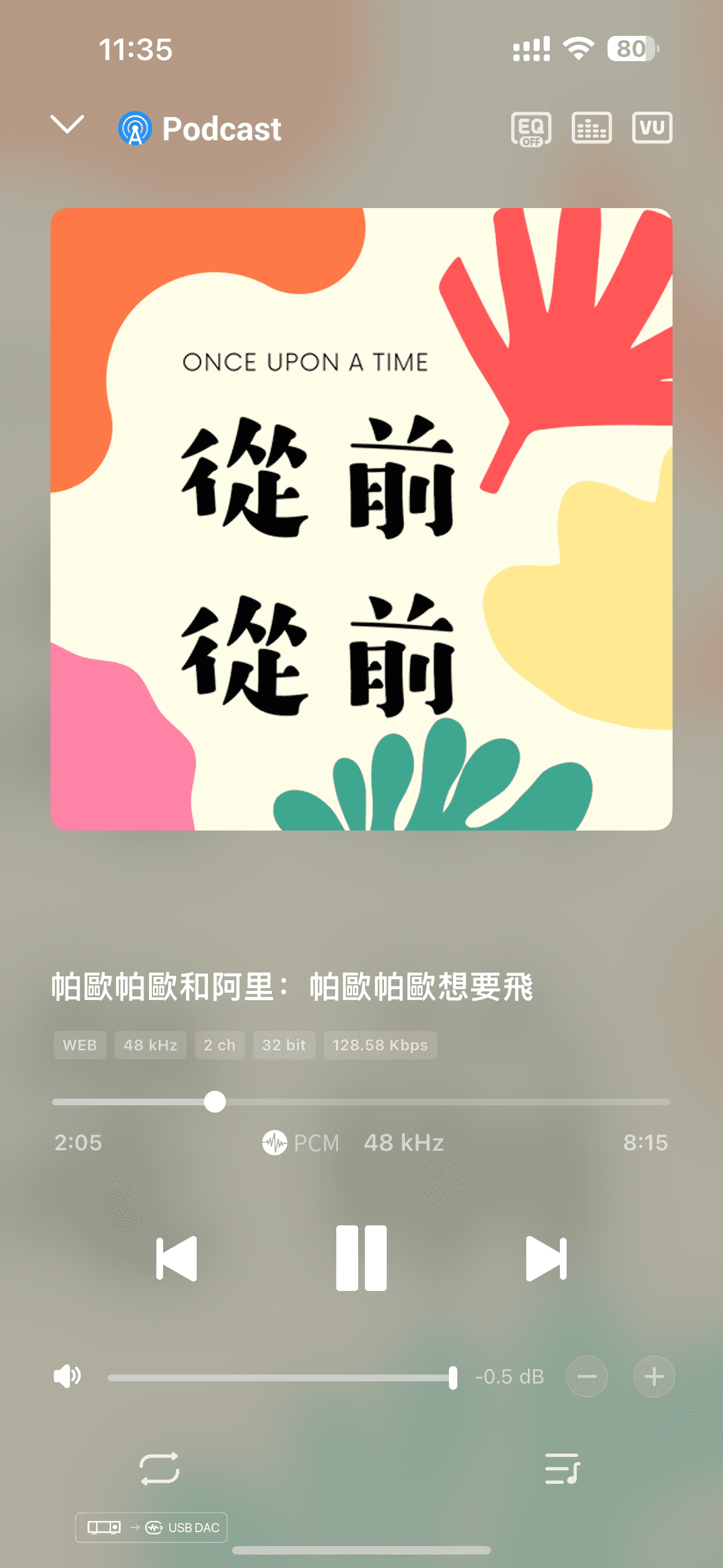
[Dual-end demonstration of the device and Eversolo Control]